Show it once. Let your RCM desktop agent do it every day.
Cognitive Automator by QuickIntell records the clicks, typing, browser steps, and file work behind repetitive revenue-cycle workflows—then turns them into a visual automation your team can review and run on Windows.
Windows 10/11 64-bit · Signed installer release in preparation · QuickIntell license required
Startup license verification requires an internet connection.
The public installer is not yet available. The licensing call opens QuickIntell's scheduling calendar so we can help plan your first workflow.
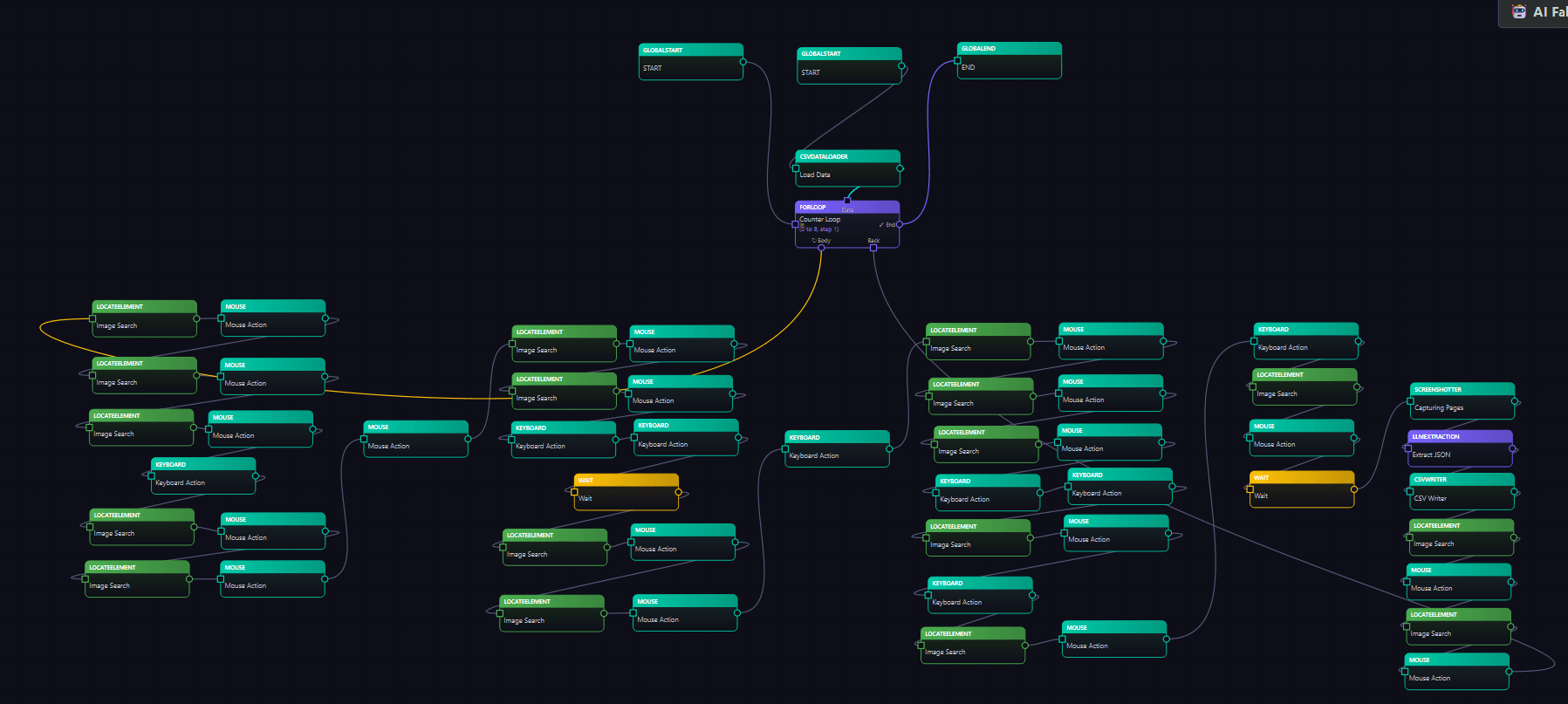
Cognitive Automator · Workflow canvas

Windows-native
Built for Windows 10 and 11
Visual workflows
Review every recorded step
Local model support
Use a configured local endpoint
Controlled execution
Preflight, safe mode, and run history
The work between your systems
Your hardest automation problem is often the work no API can reach.
RCM teams lose time to the gaps between payer portals, EHRs, spreadsheets, PDFs, and desktop applications. These tasks are essential, repetitive, and still depend on someone clicking through the same sequence every day.
Portal hopping
Sign in, search, open, copy, update, and repeat across disconnected payer experiences.
Re-keying data
Move the same account details between spreadsheets, practice systems, PDFs, and web forms.
Invisible process knowledge
Critical workflows live in an experienced operator’s memory instead of a reviewable system.
Brittle workarounds
Generic macros break when a pause, branch, file, or browser decision enters the process.
From demonstration to automation
Teach it in the language your team already speaks: the workflow itself.
There is no training-video upload and no requirement to translate every task into code. Record the live process, inspect the flow, and decide when it is ready to run.
- 01
Perform the workflow once
Start the live recorder and complete the task as usual. Cognitive Automator captures desktop and browser actions while you work.
- 02
Review the visual flow
Your actions become a node-based workflow. Inspect and test each click, field, file step, and branch before production use.
- 03
Add guardrails and inputs
Set variables, confirmations, timing, safe mode, and the data sources each run is allowed to use.
- 04
Run it on demand
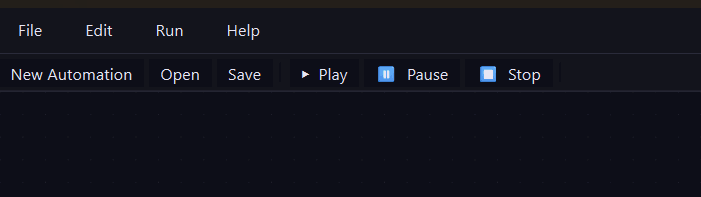
Launch the workflow from your Windows computer, monitor progress, pause when needed, and review the execution history.
Built around RCM operations
Put the repeatable parts of your workday on a workflow.
Cognitive Automator is designed for structured, operator-reviewed tasks. Start with stable, high-volume workflows where the rules and expected outcomes are already understood.
Eligibility checks
Move through payer portals and update coverage results in your working queue.
Claim status follow-up
Repeat portal lookups, capture status details, and route accounts for the next action.
Denial and appeal prep
Collect the documents and portal details your team needs before human review.
EOB and payment handling
Open, organize, and transfer information between PDFs, portals, and desktop systems.
Spreadsheet-to-system work
Read worklists in Excel and carry approved actions into browser or Windows applications.
Daily operations reporting
Gather routine outputs from multiple systems and assemble repeatable team reports.
Every organization, payer portal, and workflow is different. Validate permissions, security controls, and outputs before production use.
A different kind of automation
Give no-API work a reviewable path forward.
Keep the reach of desktop work while replacing undocumented repetition with a workflow your team can see, control, and improve.
| Approach | Manual work | Traditional automation | Cognitive Automator |
|---|---|---|---|
| How work is defined | Written SOPs and memory | Technical scripts or integrations | A live, recorded workflow |
| Where it can work | Anywhere a person can click | Systems with supported APIs | Supported Windows apps, browsers, files, and spreadsheets |
| How teams inspect it | Shadow the operator | Read code or system logs | Review a visual node flow and run history |
| Data path | Stays in existing systems | Often moves through another platform | Local-first, with optional configured AI services |
Workflow detail
Ready to review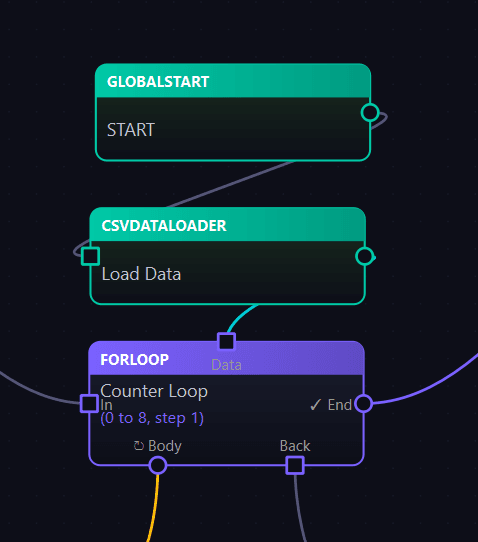
Made for operator control
Powerful enough to cross applications. Clear enough to inspect before it moves.
The workflow canvas makes desktop automation visible. Operators can understand the sequence, confirm inputs, and stay close to runs that need judgment.
Desktop action recording
Capture mouse, keyboard, application, file, and timing steps from the live workflow.
Browser workflow recording
Record payer-portal and web-app interactions in a reusable local browser profile.
Visual workflow editor
Inspect and arrange recorded nodes so operators can understand what the automation will do.
Optional AI-assisted steps
Use a local OpenAI-compatible endpoint, or explicitly configure a supported cloud model when needed.
Operational safeguards
Use preflight checks, safe mode, pause and stop controls, plus the top-left mouse failsafe.
Run history
Review completed and interrupted runs to support troubleshooting and operator oversight.

Local-first by design
Keep the core workflow where the work already happens.
Workflow definitions, browser profiles, local files, and run history stay on the Windows computer. External services are limited to the functions your team knowingly configures.
- Core desktop and browser automation runs locally.
- License verification sends the license email and key, app version, and timestamp to QuickIntell.
- A local OpenAI-compatible endpoint keeps AI content local.
- Choosing OpenRouter sends relevant prompt or image content to that cloud service.
Your data path
On your computer
Default workflow boundary
Limited external services
Only when required or configured
QuickIntell license service
License identity, app version, and timestamp
Optional OpenRouter model
Relevant prompts or images if your team selects it
Local-first does not mean zero network traffic. Review your configured model, workflow, portal permissions, and internal security requirements before deployment.
Turn one repetitive RCM workflow into your first desktop automation.
Install Cognitive Automator on a supported Windows computer, activate it with your QuickIntell license, and start with a stable workflow your team knows well.
The licensing call opens QuickIntell's scheduling calendar.
Windows release
- Version
- 1.0.0
- Platform
- Windows 10/11, 64-bit
- License
- QuickIntell activation required
- Installer
- Signed release in preparation
Frequently asked questions
What RCM and IT teams need to know.
Does Cognitive Automator need an API or EHR integration?
No hidden API is required for the core automation. It works through the same Windows applications, browser screens, files, and spreadsheets your team already uses. Your organization is still responsible for confirming that automation is permitted by each system and payer portal.
Do I upload a video to train it?
No. You start a live recorder and perform the workflow on your computer. The app captures the actions and turns them into an editable visual workflow; it does not require an uploaded training video.
Does data ever leave the computer?
Core workflow definitions, files, browser profiles, and execution history are stored locally. License verification sends the license email and key, app version, and timestamp to QuickIntell. AI content can remain local when you configure a local OpenAI-compatible endpoint; if you choose a cloud model through OpenRouter, relevant prompt or image content is sent to that service.
Which computers are supported?
The current release supports 64-bit Windows 10 and Windows 11 computers. macOS, Linux, and mobile devices are not supported in this release.
Does it need an internet connection?
An internet connection is needed for license verification. It is also required if a workflow uses a cloud AI model. Workflows that rely only on local applications and a local AI endpoint can otherwise execute locally.
How should we handle passwords and portal credentials?
Use approved credential controls and a dedicated local browser profile where appropriate. Do not record passwords directly into a reusable workflow. Your security and compliance teams should review each workflow before production use.
What happens if a page changes or a run needs attention?
A changed layout, pop-up, or unexpected path may require the workflow to be edited or recorded again. Test changed workflows before production use. Operators can use preflight checks and safe mode, pause or stop a run at any time, trigger the top-left mouse failsafe, and inspect execution history.
Can it bypass MFA or CAPTCHA challenges?
No. Cognitive Automator is not designed to bypass security controls. Workflows that encounter MFA, CAPTCHA, or another required human check should pause for an authorized operator to complete that step.
Can it run in Citrix, VDI, or a remote desktop?
Compatibility depends on the environment, application behavior, display settings, and your organization’s policies. These deployments should be evaluated with QuickIntell and tested on the intended Windows environment before rollout.
Can we use it with PHI, and is the product HIPAA compliant?
A local-first architecture is not, by itself, a compliance guarantee. Your organization must review each workflow, device, portal permission, credential process, and AI-provider choice under its own security and compliance program. QuickIntell does not make a blanket HIPAA-compliance claim on this page.
Does installation or normal use require administrator access?
Windows may request administrator approval through UAC during installation. The application does not require administrator privileges for normal runtime use.
Is a license required after download?
Yes. The Windows installer can be downloaded directly when a signed release is available, but the application requires a QuickIntell license to activate. Book a licensing call to discuss deployment and workflow fit with the team.
Stop rebuilding the same workday by hand.
Show Cognitive Automator a stable RCM workflow, review what it captured, and give your team a controlled way to run it again.